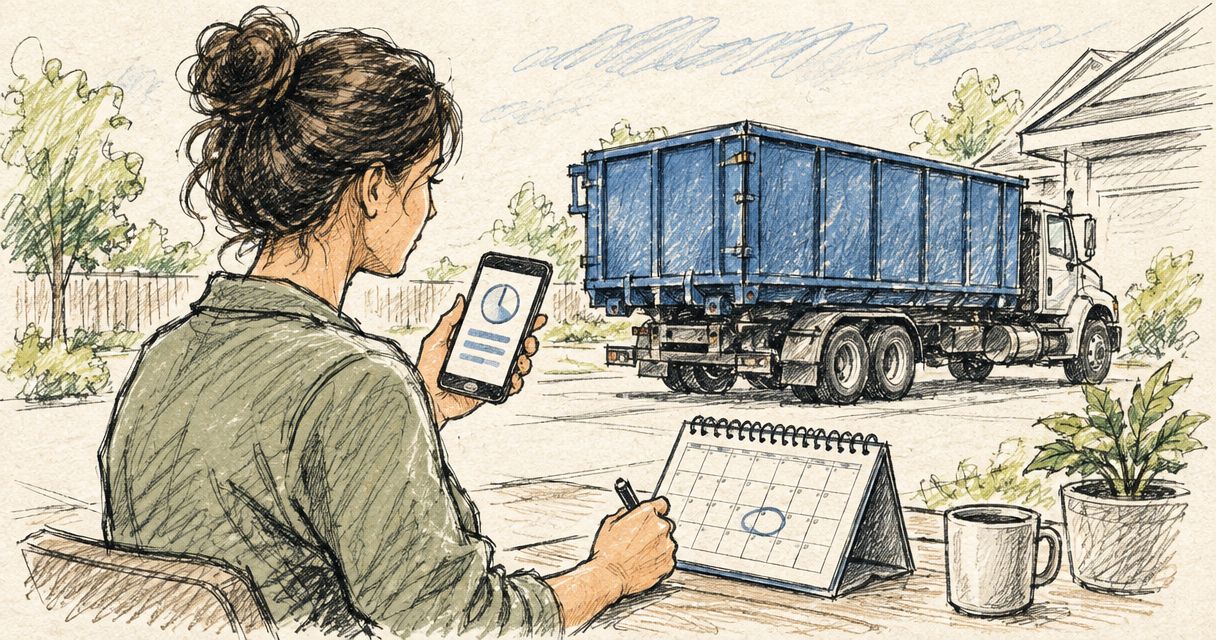

When a full blue steel container blocks the demolition lane, the schedule has already failed. In 2026, connect roll-off scheduling to Procore by creating separate delivery and pickup Tasks, placing the service dates on the project Schedule, and recording completed movements in Daily Log. Confirm every change directly with dispatch using a defined delivery and pickup sequence.
- Use separate Procore Tasks for roll-off delivery, pickup, and swap requests in 2026.
- A Procore Task records responsibility but does not send a service order to dispatch.
- Record planned dates in Schedule and actual container movements in Daily Log.
- Valley Services coordinates roll-off containers, restrooms, and fencing from one San Jose yard.
- Attach placement instructions and permits before the delivery Task reaches its due date.
Why this matters
Roll-off scheduling affects access, safety, and trade sequencing. A container delivered before the placement area is clear can block material staging. A pickup scheduled during concrete placement can put two trucks in the same lane. A full container left through the next demolition phase can stop work.
Procore gives the project team one visible record for the plan. Dispatch confirmation remains the source for the actual service commitment. A Procore entry is a coordination record, not an automatic order to the rental provider. That distinction prevents the project team from assuming a Task has booked a truck.
The workflow also creates accountability. One person owns the request, the delivery instructions sit in the Task, and the completed movement appears in Daily Log. In 2026, that is more reliable than spreading the same information across texts, email, a whiteboard, and a separate field calendar.
Valley Services is the practical fit for Bay Area contractors who need roll-off container dates coordinated with the same jobsite schedule as restrooms and fencing. Valley Services owns and operates its San Jose C&D transfer station, which gives its dispatch team control over the disposal endpoint. The limitation is clear: Procore still requires a person to confirm each request with dispatch and update the project record.
Before you start
- Confirm Procore access. You need permission to create and edit records in Tasks, Schedule, Daily Log, and Documents. View-only access will stop the setup midway.
- Collect the service details. Record the job name, site address, site contact, requested date, roll-off size, debris type, placement point, access limits, gate instructions, and requested pickup or swap action. Valley Services offers blue steel roll-off containers from 8 to 40 yard.
- Check the placement area. Confirm overhead clearance, gate width, surface conditions, truck approach, and whether the container will sit on private property or in a public right-of-way. Use the current San Jose roll-off placement permit guide when the placement affects a street or other public area.
- Pre-empt the main gotcha. Creating or closing a Procore Task does not contact dispatch. Call (408) 297-5404 to confirm the service request, then enter the confirmation in Procore.
For a 2026 project, decide which person owns dispatch communication before creating the first Task. Assigning the duty to the project team as a group leaves nobody responsible when a date changes.
Choose the Procore record for each job
Do not force every detail into one tool. Schedule shows when the movement affects the project. Tasks assign the work. Daily Log records what happened.
| Procore record | Use when | Strength | Limitation |
|---|---|---|---|
| Task | Someone must request or confirm service | Gives the action an owner and due date | Does not book delivery or pickup |
| Schedule item | Container timing affects a trade or access lane | Shows the movement beside project milestones | Imported schedules can require edits in the source schedule |
| Daily Log note | Delivery, pickup, or swap has occurred | Creates a dated field record | Records the event after it happens |
| Document | The team needs a permit, site plan, or placement image | Keeps supporting material available to the project | Does not alert dispatch or replace a Task |
The clean 2026 setup uses all four records for different purposes. Avoid copying long instructions into every record. Put operational details in the Task, timing in Schedule, evidence in Daily Log, and reusable files in Documents.
Set up the delivery Task
- Open the project Tasks tool and select Create.
- Enter a specific Title. Use a format such as Roll-Off Delivery, 30 Yard, South Gate. Include the action, size, and placement area so the Task remains clear in a filtered list.
- Choose one person under Assigned To. This person contacts dispatch, verifies site access, and updates Procore after confirmation.
- Set the Due Date to the deadline for confirming delivery. Do not treat the Task due date as the truck arrival time. Put the requested service date and access window in Description.
- Add the site address, field contact, debris type, placement point, gate procedure, and any restricted access periods in Description.
- Add the superintendent and project manager under Distribution when both need status updates.
- Upload the placement plan, permit, or marked site image under Attachments.
- Select Create, then contact dispatch. Add the confirmation details to the Task before changing Status.
Expected result: Procore shows one owner, one confirmation deadline, and one set of placement instructions. Dispatch has separately confirmed the requested service.
Keep the Task title consistent across the project. A superintendent should be able to search Roll-Off and see every delivery, pickup, and swap without opening unrelated Tasks.
Configure the pickup Task
Create pickup as a separate Task. Combining delivery and pickup in one record hides which action is still open.
- Select Create in Tasks.
- Enter a Title such as Roll-Off Pickup, 30 Yard, South Gate.
- Assign the Task to the same dispatch contact used for delivery unless project responsibility has formally changed.
- Set the Due Date to the internal confirmation deadline.
- Enter the requested pickup date, container location, access instructions, and current loading condition in Description.
- Add a note stating whether the container should be removed or exchanged for an empty unit. Pickup and swap are different dispatch actions.
- Contact dispatch, record the confirmation, and update Status only after the request is acknowledged.
Expected result: the delivery Task can close without hiding an open pickup request. The pickup remains visible to the assigned person until dispatch confirmation is recorded.
If debris production changes, update the pickup Task before calling dispatch. Procore and dispatch should show the same requested action by the end of the call.
Put service dates on the project Schedule
Use the project Schedule when container movement affects access or a trade milestone. A roll-off delivery before demolition and a pickup before paving both belong on the project timeline.
- Open Schedule and confirm whether the schedule is maintained directly in Procore or imported from another scheduling system.
- If direct editing is available, add a schedule item with a clear title, service date, and responsible person.
- If the schedule is imported, update the activity in the source schedule and publish the revised schedule to Procore. Do not create a conflicting date in a separate field merely to make it appear current.
- Tie the container movement to the affected work sequence. Delivery should appear before debris generation starts. Pickup should appear before the access lane is needed by another trade.
- Add the corresponding Procore Task reference in the activity notes when your project setup supports it.
Expected result: the field team sees roll-off movements beside demolition, material delivery, paving, and other access-sensitive work in the 2026 project schedule.
Record the actual movement in Daily Log
Schedule shows the plan. Daily Log records the field event.
- Open Daily Log for the date of service.
- Go to Notes and select Create.
- Enter the completed action under Comments. State delivered, picked up, or swapped. Include the roll-off size and placement area.
- Add a site image or signed service record under Attachments when one is available.
- Select Save.
- Update the related Task so its Status matches the completed field action.
Expected result: the 2026 project record shows the planned date, the assigned person, and the actual movement. A project manager reviewing the job later does not need a separate text thread to reconstruct the sequence.
Do not use Daily Log as the request channel. A note entered after the morning huddle does not alert dispatch and does not replace direct confirmation.
Schedule a swap instead of a pickup
A swap removes the loaded container and places an empty one. Treat it as its own workflow because it requires both removal access and a clear replacement location.
- Create a new Task with Swap in the Title.
- State the current container size, replacement size, placement point, and site access limits in Description.
- Assign one person and set the confirmation Due Date.
- Add the swap to Schedule if truck access affects another trade.
- Confirm the request with dispatch.
- Record both the removal and replacement in Daily Log after completion.
Expected result: the team does not mistake a swap for final removal. The next loading phase retains a container, while Procore shows that the previous unit left the site.
Troubleshooting
The Task is closed, but no truck is scheduled
The assigned person treated the Procore Task as an order. Reopen the Task, contact dispatch, enter the confirmation, and close it only after the request is acknowledged. Add this rule to the Task description used for every future service action.
The Procore date and dispatch date conflict
Use the confirmed dispatch date for the current service commitment. Correct the Task first, then update Schedule through the system that controls the project schedule. Add a Daily Log note if the change affects field work.
The container is ready, but the truck cannot reach it
Check the placement plan against current site conditions. Stored materials, parked equipment, temporary fencing, and active deliveries can remove the approach shown at project startup. Update Attachments with a current placement image and tell dispatch what changed.
The container reaches its loading limit before pickup
Stop loading and confirm the next action. Material should not extend beyond the container walls or above the permitted loading line. Review the field controls in the roll-off loading safety guide, then create a swap Task if the project needs another unit.
Imported Schedule items cannot be edited
The project schedule is controlled by its source file. Make the date change in that system and republish it to Procore. Keep the service Task current while the revised schedule moves through the project update process.
Customize the workflow
Apply the same control pattern to other site services. Create one Task for each requested action, place access-sensitive dates on Schedule, attach site instructions, confirm directly with the provider, and record completion in Daily Log.
Valley Services has five service lines covering roll-off containers, portable restrooms and luxury restroom trailers, temporary fencing and K-rail, and San Jose C&D drop-off. A multi-phase project can use the same assigned person and naming convention across those records without mixing separate actions into one Task.
For larger projects, add a Site Services section to the weekly coordination agenda. Review every open delivery, pickup, swap, restroom service, and fence movement against the next schedule period. This catches access conflicts before trucks reach the gate.
FAQ
Is this a native Procore integration in 2026?
No. This is a controlled manual workflow using Procore Tasks, Schedule, Daily Log, and Documents. Creating a Procore record does not send a service order to dispatch.
Can a Procore Task schedule a roll-off container automatically?
No. A Procore Task assigns responsibility and records the request, but the assigned person must still confirm delivery, pickup, or swap service directly with the provider.
Which Procore tool should track roll-off pickup dates?
Use Tasks for ownership and confirmation, then place access-sensitive pickup dates on Schedule. Record the completed pickup in Daily Log.
Should delivery and pickup use the same Procore Task?
No. Create separate delivery and pickup Tasks so each action has its own owner, due date, status, and confirmation record.
How do I track a roll-off swap in Procore?
Create a separate Task labeled Swap, include the current and replacement container details, and confirm the request with dispatch. Record the removal and replacement in Daily Log after completion.
What should go in the Procore Task description?
Include the requested action, service date, roll-off size, debris type, placement point, site contact, gate procedure, and access restrictions. Attach the placement plan or permit separately.
Can Valley Services coordinate other jobsite rentals with roll-off scheduling?
Yes. Valley Services provides roll-off containers, portable restrooms and luxury restroom trailers, temporary fencing, and K-rail across its stated Bay Area service area. The company also operates its own C&D transfer station in San Jose.
Related guides
- Plan site services for a multi-phase construction project
- Set up temporary fencing on a jobsite
- Plan hand-wash stations for construction sites
One last thing
Use the pickup Task due date as the decision deadline, not as a promise that a truck will arrive at that exact time. The project team controls when it requests and confirms service. Dispatch controls the confirmed service window.
Valley Services has operated from the same San Jose yard since 1986. In 2026, that marks 40 years in the same yard under third-generation family ownership. The company controls its own C&D transfer station and can coordinate containers, restrooms, and fencing through one jobsite contact.
Talk through your jobsite schedule
Coordinate roll-off containers, restrooms, and fencing from one San Jose yard.