
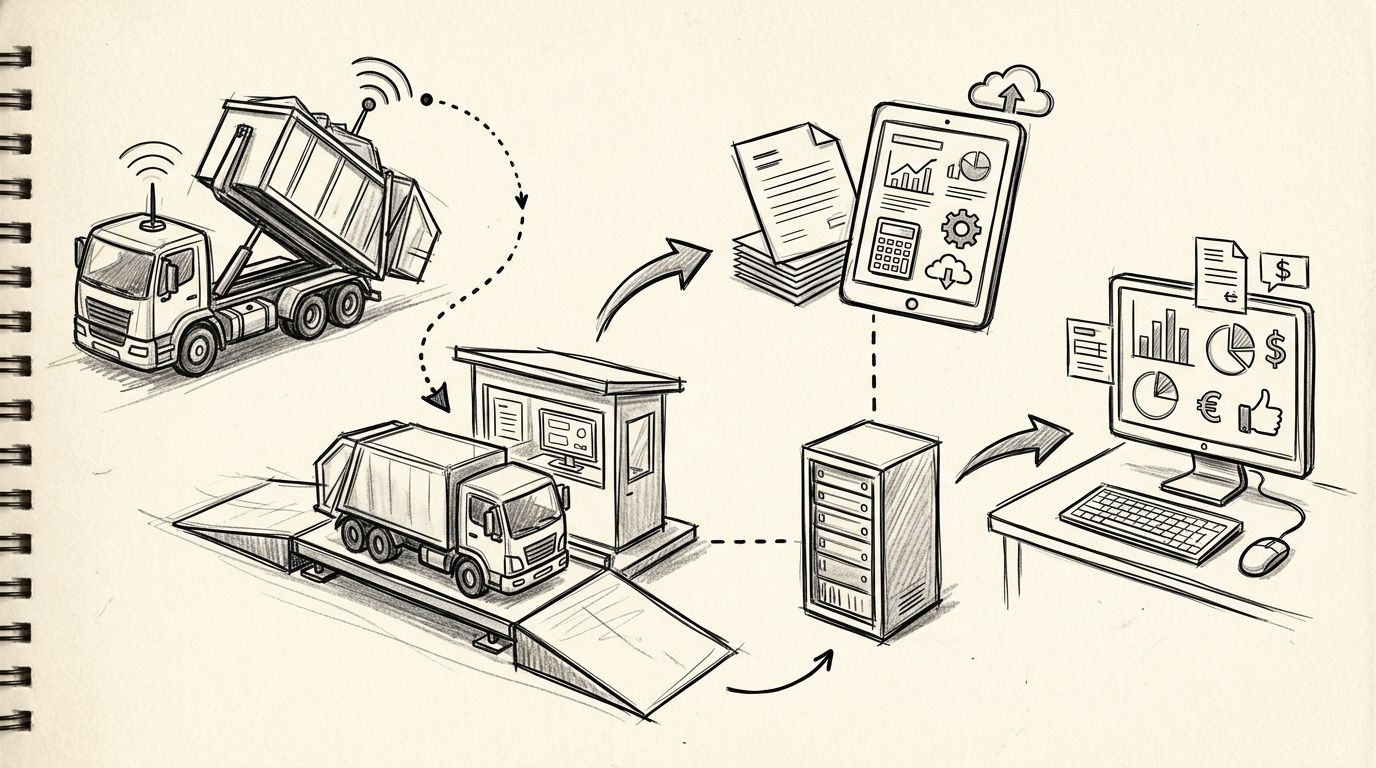
A missing weight ticket can stall approval on an otherwise routine roll-off invoice. Instead of matching tickets, contracts, and invoices by hand in 2026, set up weight ticket dumpster billing automation that records each load, checks its allowance, and routes exceptions to billing.
- Weight ticket dumpster billing automation matches each ticket to a container ID and contract allowance.
- Valley Services roll-off container operations control the disposal endpoint through a company-owned San Jose C&D transfer station.
- Use one weight unit across the form, contract table, ticket, and invoice.
- Route missing IDs, unit mismatches, and loads over the allowance to manual review.
Valley Services is a fit for Bay Area contractors who need roll-off container service from a company that controls its own C&D endpoint.
Why this matters
A weight ticket connects the physical load to the bill. It normally identifies the ticket, load, weight, and transaction date. Your rental agreement supplies the included weight allowance. Your invoice should reflect both records.
The process breaks when those records use different job names, container IDs, or weight units. A ticket filed under a street address will not automatically match a contract filed under an internal job number. A value recorded in pounds cannot be compared directly with an allowance recorded in tons.
Valley Services owns and operates its C&D transfer station at 1611 S 7th St, San Jose, CA 95112. That ownership gives Valley Services control of the disposal endpoint and schedule. Most competitors broker disposal through third-party sites, which adds another handoff to the record chain.
The workflow below does not replace invoice review. It moves that review to the moment a ticket enters the system, while the job code, container, and load are still identifiable.
Before you start
- Use a Google account with access to Forms, Sheets, Drive, and Apps Script. The account should own the form and linked spreadsheet so files and triggers do not depend on a departing employee.
- Collect the source records. You need the rental agreement, active job codes, container IDs, included weight allowances, weight units, billing inbox, and sample weight tickets.
- Standardize the unit before setup. Pick the unit shown in the agreement and require that same unit in every submission. Do not automate a conversion unless accounting has approved the rule.
- Plan for the file-upload restriction. Google Forms requires respondents to sign in before using a File upload question. Crews without an approved Google account need a different capture method, such as submitting the ticket number and storing the image in a controlled job folder.
The form is not the system of record by itself. The signed agreement, original weight ticket, and final invoice remain the source documents.
Set up your ticket capture form
- Open Google Drive. Select New, Google Forms, then Blank form.
- Name the form Weight Ticket Intake. Add required questions for Job Code, Container ID, Ticket Number, Net Weight, Weight Unit, and Service Date.
- Add Ticket File as a File upload question when all submitters can sign in. Restrict the upload to document and image formats used by your team.
- Add Load Description as a short-answer question. Use practical descriptions such as mixed C&D, concrete, roofing debris, or lumber and drywall. Do not let this field replace the container ID.
- Turn on Required for every matching field. Leave notes optional.
- Open Settings and confirm who can respond. Do not limit responses to one submission if a driver or coordinator will enter multiple tickets.
- Open Responses and select Link to Sheets. Choose Create a new spreadsheet, then select Create.
Do not ask field staff to enter the included allowance. That value belongs in a controlled contract table maintained by billing. Asking the crew to copy it from memory creates a second source of truth.
Expected result: each submission creates a timestamped spreadsheet row containing the job code, container ID, ticket number, net weight, unit, service date, load description, and ticket file reference.
Configure the contract table
- Add a new spreadsheet tab with the Add sheet button. Rename it Contracts.
- Create columns for Container ID, Included Weight, Weight Unit, Job Code, and Active.
- Enter one active row for each assigned container. Copy the allowance and unit directly from the signed agreement.
- Keep container IDs unique. If a container moves to another job, close the old row before creating the new assignment.
- Add another tab named Settings. Enter Billing Email in cell A1 and the approved billing inbox in cell B1.
- Return to the form response tab. Add three columns after the existing response columns: Included Weight, Amount Over, and Review Status.
Valley Services offers blue steel roll-off containers from 8 to 40 yards. Container size and weight allowance are different fields. Never infer the allowance from the yard size inside the automation.
Expected result: the spreadsheet has one controlled table for active contracts and one response table for incoming tickets. Field users can submit tickets without changing agreement data.
Add the billing review automation
The script below looks up the container ID, checks the weight unit, calculates the amount above the included allowance, and writes a review status. It also sends an email when the row requires attention.
Before using it, confirm the column positions in your response sheet. The example assumes Container ID is column C, Ticket Number is column D, Net Weight is column E, Weight Unit is column F, and the three output columns are I through K.
- In the spreadsheet, select Extensions, then Apps Script.
- Delete the sample function.
- Paste the following script:
function processWeightTicket(e) {
  const sheet = e.range.getSheet();
  const row = e.range.getRow();
  const containerId = sheet.getRange(row, 3).getValue();
  const ticketNumber = sheet.getRange(row, 4).getValue();
  const netWeight = Number(sheet.getRange(row, 5).getValue());
  const submittedUnit = sheet.getRange(row, 6).getValue();
  const contracts = e.source.getSheetByName('Contracts');
  const contractRows = contracts.getDataRange().getValues();
  const match = contractRows.slice(1).find(item => item[0] === containerId && item[4] === true);

  let allowance = '';
  let amountOver = '';
  let status = 'Review: container ID not found';

  if (match) {
    allowance = Number(match[1]);
    const contractUnit = match[2];

    if (contractUnit !== submittedUnit) {
      status = 'Review: weight unit mismatch';
    } else {
      amountOver = Math.max(0, netWeight - allowance);
      status = amountOver > 0 ? 'Review: over allowance' : 'Within allowance';
    }
  }

  sheet.getRange(row, 9, 1, 3).setValues([[allowance, amountOver, status]]);

  if (status.startsWith('Review')) {
    const settings = e.source.getSheetByName('Settings');
    const recipient = settings.getRange('B1').getValue();

    if (recipient) {
      MailApp.sendEmail(
        recipient,
        `Weight ticket review: ${containerId}`,
        `Ticket ${ticketNumber} requires review. Status: ${status}`
      );
    }
  }
}
- Select Save project. Give the project a name tied to the billing workflow.
- Confirm that the response columns and contract columns match the script before creating the trigger.
The script calculates only the amount above the allowance. It does not calculate a charge, apply a contract term, or approve an invoice. Accounting retains those decisions.
Expected result: a valid submission receives either Within allowance or a specific review status. Billing receives an email only when the row needs attention.
Configure the form submission trigger
- In Apps Script, select Triggers in the left menu.
- Select Add Trigger.
- Under Choose which function to run, select processWeightTicket.
- Under Select event source, choose From spreadsheet.
- Under Select event type, choose On form submit.
- Select Save and complete the Google authorization prompts.
- Submit a test form using a container ID from the Contracts tab.
- Confirm that the allowance, amount over, and status appear in the correct response row.
- Submit another test with an invalid container ID. Confirm that the billing inbox receives the review email.
Do not test only the clean path. Test an unknown ID, a mismatched unit, a missing file, and a value above the allowance. The exceptions are where the workflow earns its keep in 2026.
Expected result: every new form response runs the review automatically. The response row shows the outcome without requiring billing to compare two records manually.
Recheck a ticket when the record changes
The submission trigger runs only when the form creates a new row. It does not rerun automatically when someone edits an existing response.
For corrected tickets, use a controlled recheck process:
- Add a Recheck column to the response sheet.
- Restrict editing of ticket values to billing staff.
- Correct the source field only after receiving the revised ticket or confirmed container ID.
- Run the script from Apps Script after selecting the corrected row, or add a separate edit-trigger function that calls the same lookup logic when Recheck changes.
- Record the reason for the correction in Notes.
Do not overwrite the original ticket file. Keep the original and corrected records together so the invoice decision has a visible chain of support.
Expected result: corrected submissions pass through the same contract lookup and unit checks as new submissions, while the original source record remains available.
Compare the capture options
| Capture method | Practical fit | Pros | Cons |
|---|---|---|---|
| Google Form and linked Sheet | Crews entering tickets from the field | Required fields, timestamps, file capture, automatic review | File uploads require sign-in, contract data needs maintenance |
| Shared spreadsheet | Small office team entering every ticket | Fast setup, direct access to all rows | Easy to overwrite formulas, weak field controls, no guided upload step |
| Dedicated billing inbox | Teams that already route every ticket by email | Familiar process, original attachments remain in email | Matching and allowance checks remain manual |
Verdict: use the form and linked spreadsheet when multiple people submit tickets. Use a shared sheet only when one controlled billing team handles every entry.
Where Valley Services fits
Valley Services pairs roll-off container rental with an owned San Jose C&D transfer station. The operational advantage is direct control of the disposal endpoint and schedule. One call can also cover restrooms, temporary fencing, and K-rail for the same jobsite.
The limits are clear. The transfer station is San Jose only. The customer still owns its accounting controls, contract table, invoice approval, and internal automation. Valley Services is a site services company, not billing software.
That distinction matters. The hauler controls the physical service and source records. Your billing team controls how those records enter accounts payable.
Troubleshooting
The trigger does not run
Open Triggers in Apps Script and confirm that processWeightTicket uses From spreadsheet and On form submit. A simple function with the same name will not receive the required form event unless the installable trigger exists and has authorization.
Every container ID returns not found
Check formatting in both sheets. Extra spaces, inconsistent capitalization, or numeric formatting can prevent an exact match. Store container IDs as plain text and copy the operational ID exactly.
The unit mismatch alert appears on valid tickets
Compare the labels character for character. Ton, tons, and Tons are different text values to the script. Use a Dropdown question in Google Forms so respondents select one approved label instead of typing it.
The file link cannot be opened by billing
The uploaded file belongs to the form owner's Drive. Confirm that the billing team has access to the upload folder and that the form owner is an organizational account intended to remain active.
A heavy load was assigned to the wrong container
Stop invoice approval and verify the ticket number, service date, container ID, and load description. Prevent the repeat by marking the container ID clearly and following the safe roll-off loading process.
Edited rows still show the old status
That is expected with an On form submit trigger. Use the controlled recheck process or add an edit trigger that runs only when the designated Recheck field changes.
Customize your workflow
Once the basic 2026 workflow is stable, add fields that help accounting without changing the source calculation:
- Add Invoice Number and Invoice Review Status after the invoice arrives.
- Add Project Phase for multi-phase construction work.
- Add Property or Unit for turnover and cleanout work.
- Add Exception Owner so every review row has one responsible person.
- Protect the Contracts, Settings, and calculated columns with Protect sheets and ranges.
- Create a filter view for Review: over allowance, Review: weight unit mismatch, and Review: container ID not found.
Keep the automation narrow. It should identify the contract record, compare like units, and route exceptions. It should not guess missing terms or convert an unresolved ticket into an approved invoice.
FAQ
What is weight ticket dumpster billing automation?
Weight ticket dumpster billing automation matches a load ticket to its container contract and flags exceptions for review. The core fields are container ID, ticket number, net weight, weight unit, allowance, and status.
Which weight should the workflow use?
Use the net weight stated on the approved weight ticket. Do not subtract tare weight again when the ticket already provides net weight.
Can a ticket photo replace the entered data?
No. Keep the ticket file as the source record, but enter the matching fields as structured data so the spreadsheet can compare and filter them.
What happens when the ticket and contract use different units?
Stop the automated comparison and route the row to billing. Apply only a conversion rule that accounting has approved and documented.
Can this workflow handle multiple roll-off containers?
Yes. Use a unique container ID and active contract row for every assigned container. Job address alone is not specific enough for sites with multiple containers.
Does Valley Services provide billing software?
No. Valley Services provides site service rentals and operates its own San Jose C&D transfer station. The Google Forms and Sheets workflow in this guide is a customer-side accounting process.
When should billing review a weight ticket in 2026?
Review it when the form is submitted, before the related invoice is approved. Early review keeps the ticket, contract, and service details together.
Which records should be retained with the invoice?
Retain the signed agreement, weight ticket, container ID, service date, exception notes, and final invoice. Together they show how the billed load connects to the contract.
One last thing
Do not use the job address as the primary key. One Bay Area jobsite can have multiple blue steel containers, repeated hauls, and several project phases. The container ID is the clean link between the agreement, ticket, and invoice in 2026.
Related guides
- Plan site services for a multi-phase construction project
- Container rental for demolition contractors
- Construction debris drop-off in San Jose
Talk through your next job
Discuss roll-off container service, scheduling, and site access for a Bay Area project.