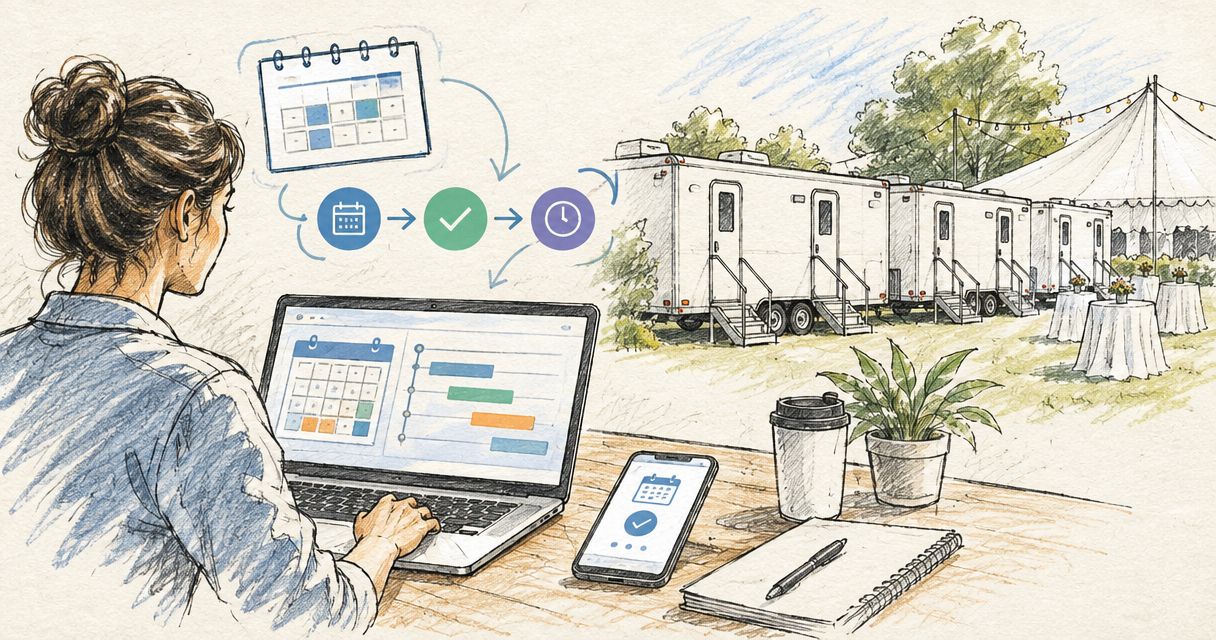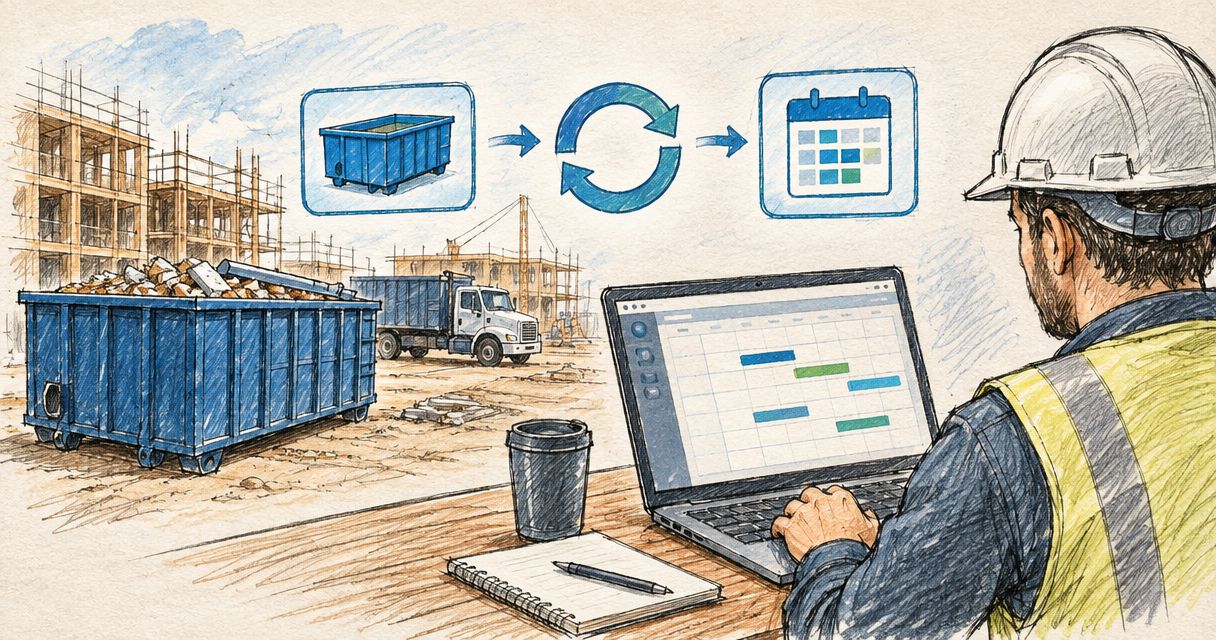
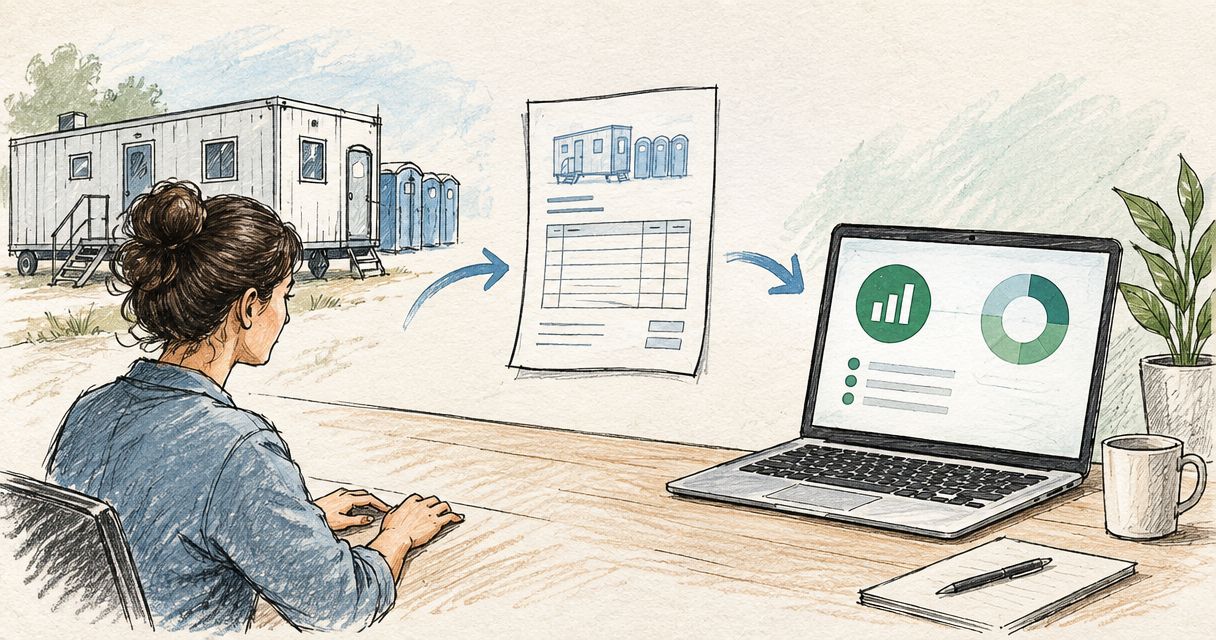
A general contractor running three job sites gets separate invoices for roll-off containers, portable restrooms, and temporary fencing, and none of it shows up in QuickBooks until someone keys it in by hand at month end. Set up the vendor, the service items, and a job-costing structure once in 2026, and every site service rental invoice lands on the right job the first time it's entered.
- Site service rental invoices in QuickBooks work when the vendor, service items, and job class exist before the first bill arrives.
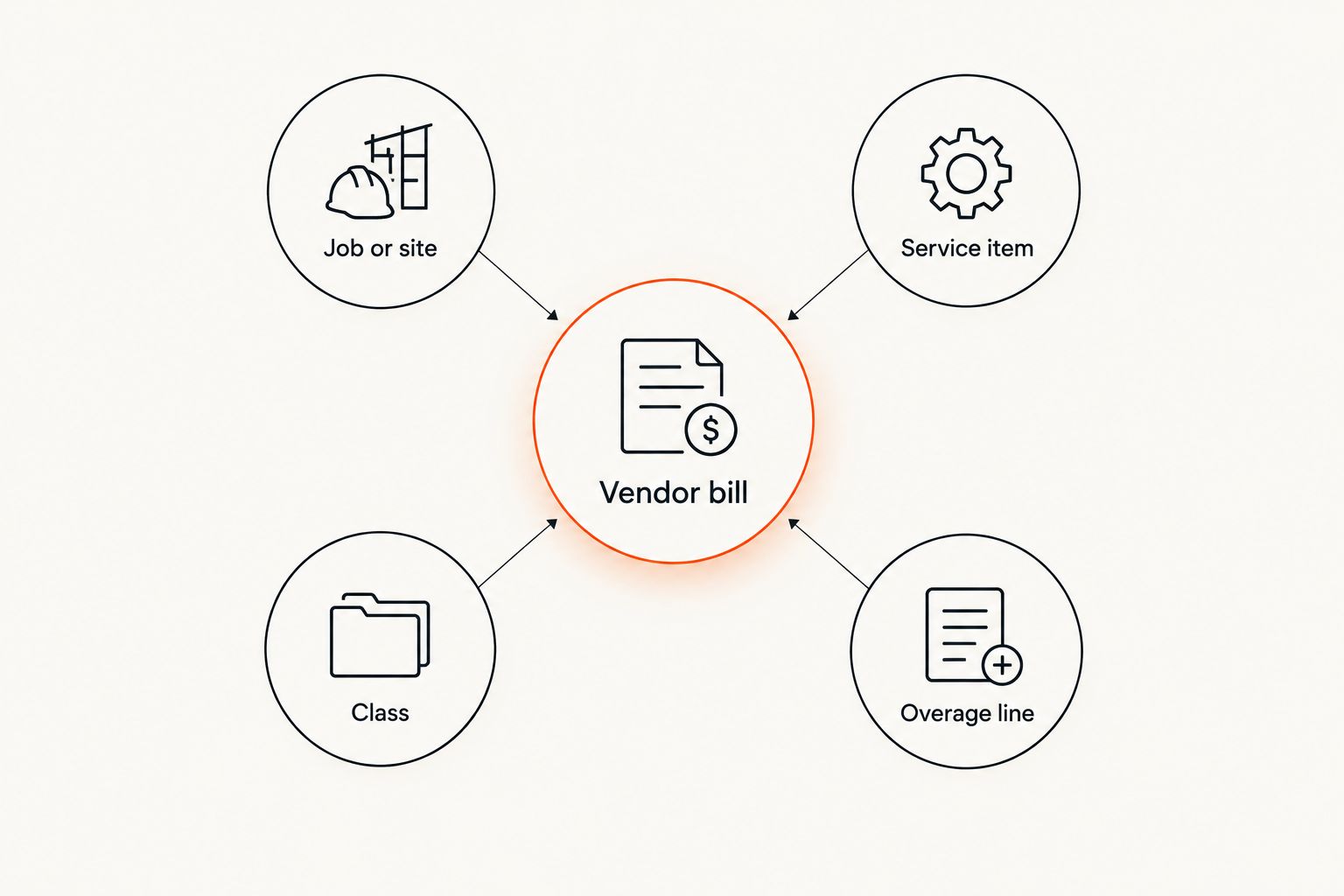
- Valley Services bills roll-off containers, restroom rental, and fencing as separate items, so QuickBooks needs matching items to split job costs.
- Class tracking or Projects in QuickBooks Online is the difference between knowing a job's real site service cost and guessing at it.
- Overage and extra pickup charges need their own line item, never a lump sum folded into the base rental fee.
Why this matters
Job costing only works if every dollar lands on the right job. A container bill coded to a generic "supplies" account instead of the job it served makes labor and material comparisons meaningless once the project closes out.
Contractors and property managers working with Valley Services get one invoice stream for roll-off containers, restroom rental, and fencing instead of three vendors to reconcile separately. That still requires QuickBooks to know how to split those line items by job, by service type, and by phase. Set the structure up once in 2026, and every invoice after that takes under five minutes to enter correctly.
Before you start
- A QuickBooks Online subscription with Class tracking turned on (Plus or Advanced) or the Projects feature enabled, so costs can be split by job site.
- Valley Services set up as a vendor in your Vendor list, with separate service items for roll-off container rental, restroom rental, and fencing rental rather than one generic "site services" item.
- The delivery ticket or job-site record for the period billed, so the lines on the QuickBooks bill match what was actually delivered.
The gotcha: a single Valley Services invoice frequently combines a base rental period with variable charges such as extra pickups, overage tonnage, or extended rental days. If those variable charges get coded into the same item as the flat rental fee, every job cost report will show the wrong number the moment a job runs an extra week.
Set up Valley Services as a vendor
- In QuickBooks Online, go to Expenses, then Vendors, then click New vendor.
- Enter Valley Services as the vendor name and add the billing address exactly as it appears on the invoice.
- Under Payment settings, set the default terms to match what's on the account.
- Click Save.
Expected result: Valley Services appears in the vendor list and can be selected on any bill or expense going forward.
Build service items for each rental type
- Go to Sales, then Products and Services, then click New.
- Create a Service item named Roll-off container rental, a second named Restroom rental, a third named Fencing rental, and a fourth named Overage and extra pickup.
- On each item, check Is billable to customer only if that cost gets passed through on a client invoice; leave it unchecked for jobs you're not rebilling.
- Assign each item to an expense account under Job costs or Cost of goods sold, not a general Supplies account.
Expected result: four selectable line items exist, so a single Valley Services bill can be split across four categories in one entry instead of one lump total.
Set up job costing with Classes or Projects
- Go to Settings, then Account and settings, then Advanced, and turn on Track classes, or use Projects under the Sales tab if the subscription includes Plus or Advanced.
- Create one Class or Project per job site, named the way your crew already refers to the site, since an address or job number works better than a client name once you're running multiple jobs for the same client.
- On every future bill, assign the Class or Project to each line, not just to the bill as a whole. One invoice can span two active jobs if a container got moved mid-rental.
Expected result: a Profit and Loss by Class report shows disposal, restroom, and fencing costs broken out per job site instead of lumped under one vendor total.
Enter the rental invoice as a bill
- Go to Expenses, then click New transaction, then Bill.
- Select Valley Services as the vendor and enter the invoice number and invoice date exactly as printed, not the date it was opened.
- Add one line per service item: Roll-off container rental for the base period, then a separate line for Overage and extra pickup if the invoice shows one.
- Assign the correct Class or Project to each line and enter the amount from that line of the invoice, not a total split evenly across lines.
- Click Save and close.
Expected result: the bill posts to Accounts Payable for the full amount due, and a Job Costs by Vendor report will show Valley Services broken into container, restroom, and fencing spend the moment it's run.
Second variant: recurring monthly restroom or fencing service
A job site running weekly restroom pump-outs or a fencing rental spanning several months doesn't need a new bill built from scratch every cycle. Open the first bill entered for that service, click More at the bottom, then Make recurring. Name the template, set the interval to match the service schedule, weekly for restroom service or monthly for fencing, and set QuickBooks to auto-create the bill on schedule.
Review each auto-created bill against the actual invoice before approving payment. A rate change, an added unit, or a job that shifted into a long-term site service rental contract partway through won't be caught by the template on its own.
Troubleshooting
- Invoice total doesn't match the sum of the bill lines. Check the invoice for a delivery fee or trip charge listed separately from the rental line, then add a fifth line item for it instead of folding it into the container rental amount.
- Job cost report shows zero for a job you know had a container on site. The bill was likely saved with no Class or Project assigned. Open the bill and assign the Class to each line, not just the vendor field.
- Same job shows costs split under two different Class names. This happens when a job site got a nickname change mid-project. Merge the Classes in the Class list and re-run the report.
- Overage charges keep landing in the wrong account. Confirm the Overage and extra pickup item maps to the same Job costs account as the base rental item. A mismatched mapping is the most common reason job margins look off once a container runs long.
- Bill still shows a balance after payment was made. Check whether the payment was applied directly through Pay Bills rather than entered as a separate Expense, which creates a duplicate and leaves the original bill open.
Customize your workflow
Once bills are landing correctly, tie them to what actually happened on site rather than just what was billed. For contractors passing tonnage costs back to a client or an insurance carrier, cross-reference weight tickets against the invoice using the process in weight tickets to accurate dumpster billing. That step catches a coded overage before it reaches a client invoice, not after.
Talk Through Your Invoice Coding
One invoice stream for containers, restrooms, and fencing across your job sites.
FAQ
How do I enter a site service rental invoice in QuickBooks?
Create the vendor once, build a separate service item for each rental type, container, restroom, and fencing, then enter the invoice as a Bill with one line per item. Assign a Class or Project to each line so job cost reports break out the spend accurately.
Should I use QuickBooks Online or QuickBooks Desktop for job site rental tracking?
QuickBooks Online with Class tracking or Projects enabled is the more common setup for contractors and property managers running multiple sites in 2026, since per-job reporting works without extra add-ons. QuickBooks Desktop can do the same job costing but needs its job costing module configured up front.
Can I track roll-off container costs by job in QuickBooks?
Yes, by assigning a Class or Project to the container rental line on every bill. Running a Profit and Loss by Class report afterward shows disposal cost broken out per job site instead of lumped into one vendor total.
How do I code overage or extra pickup fees separately from the base rental?
Add a second service item, such as Overage and extra pickup, and put that charge on its own line of the bill instead of adding it to the base rental amount. This keeps the flat rental rate visible for comparison against future jobs.
Does Valley Services break out containers, restrooms, and fencing on the invoice?
Valley Services bills roll-off containers, restroom rental, and temporary fencing as distinct line items on the account, which is what makes splitting them into separate QuickBooks service items straightforward.
What QuickBooks feature tracks costs by job site?
Class tracking, available on QuickBooks Online Plus and Advanced, or the Projects feature both let a bill get split and tagged by job site. Either one supports a Profit and Loss by Class or by Project report.
How often should site service rental invoices be reconciled?
Reconcile rental invoices against delivery tickets and vendor statements monthly, before running any job cost report a client or lender will see. Catching a coding error the same month it happened is faster than untangling it at project close-out.
Can property managers track rental invoices across multiple properties in QuickBooks?
Yes, using one Class or Project per property works the same way it does for a job site. A property manager running turnover cleanouts across several buildings can pull a single Class report to see disposal cost per property for the month.
One last thing
Job costing rarely breaks down at the bill-entry step. It breaks down when the Class field gets left blank because whoever entered the vendor bill wasn't at the job walk and didn't know which site to charge. Make the Class field required on every line before a bill can be saved, and job cost reports stop needing cleanup at month end, even on a year with as many job sites running at once as 2026 has brought for most Bay Area crews.
For questions about how an account gets invoiced across multiple active job sites, call Valley Services at (408) 297-5404 or check current service details at valleyservices.biz.